It starts with whatever you're playing.
On your PC, your phone or a speaker. Huephony follows whatever your Spotify account is playing, wherever it's playing. There's nothing to tap.
Room lights that follow your music.
Huephony runs on Windows PCs. Open this page on your computer to install it.
What it is
Huephony reads the album cover playing on Spotify, spreads its colors across your Govee lights, and turns a spare screen into a matching pane of glass.
On your PC, your phone or a speaker. Huephony follows whatever your Spotify account is playing, wherever it's playing. There's nothing to tap.
It pulls the colors out of the artwork and works out which ones matter, including the small accents an average would wash out.
Every bulb gets a color, neighboring stands get contrasting ones, and the screen re-tints its glass to match.
Purple sky, orange sun and the red-pink stripes, spread so stands next to each other don't match.
Afterglow Avenue · Juno Hart
Put Huephony full screen on a second monitor or a TV. The album's colors drift behind the glass, and the player stays out of the way.
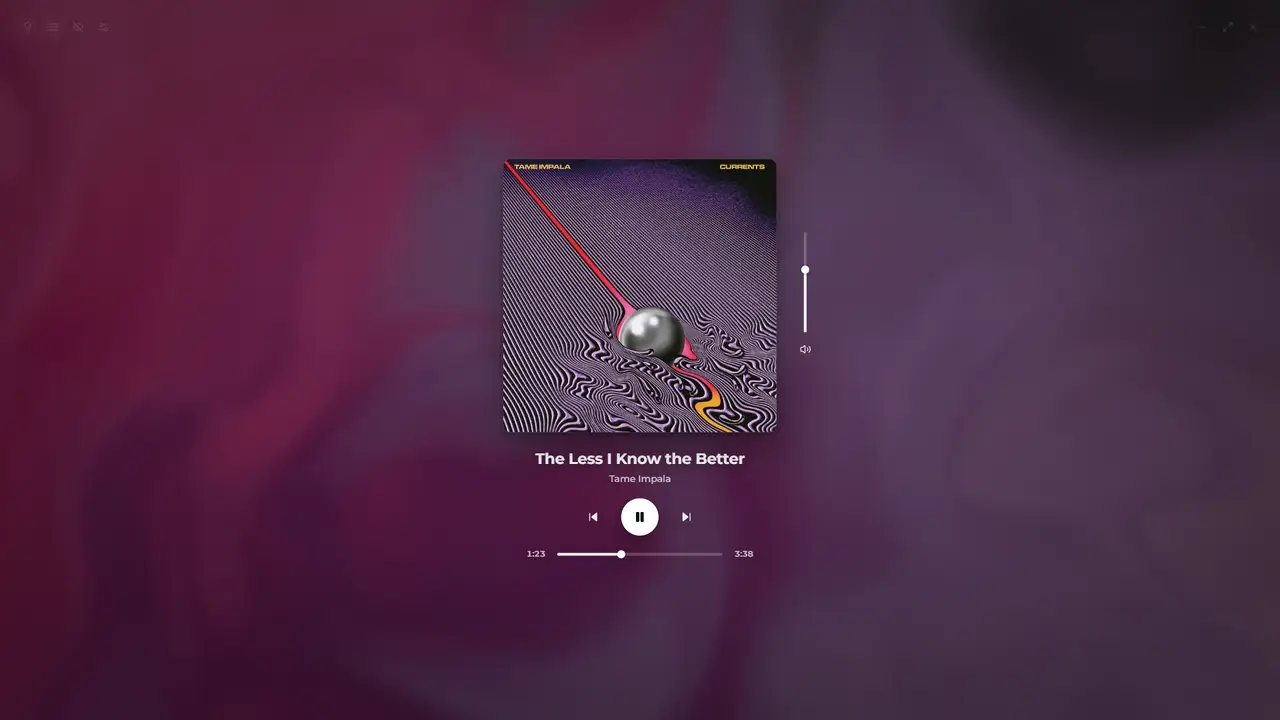

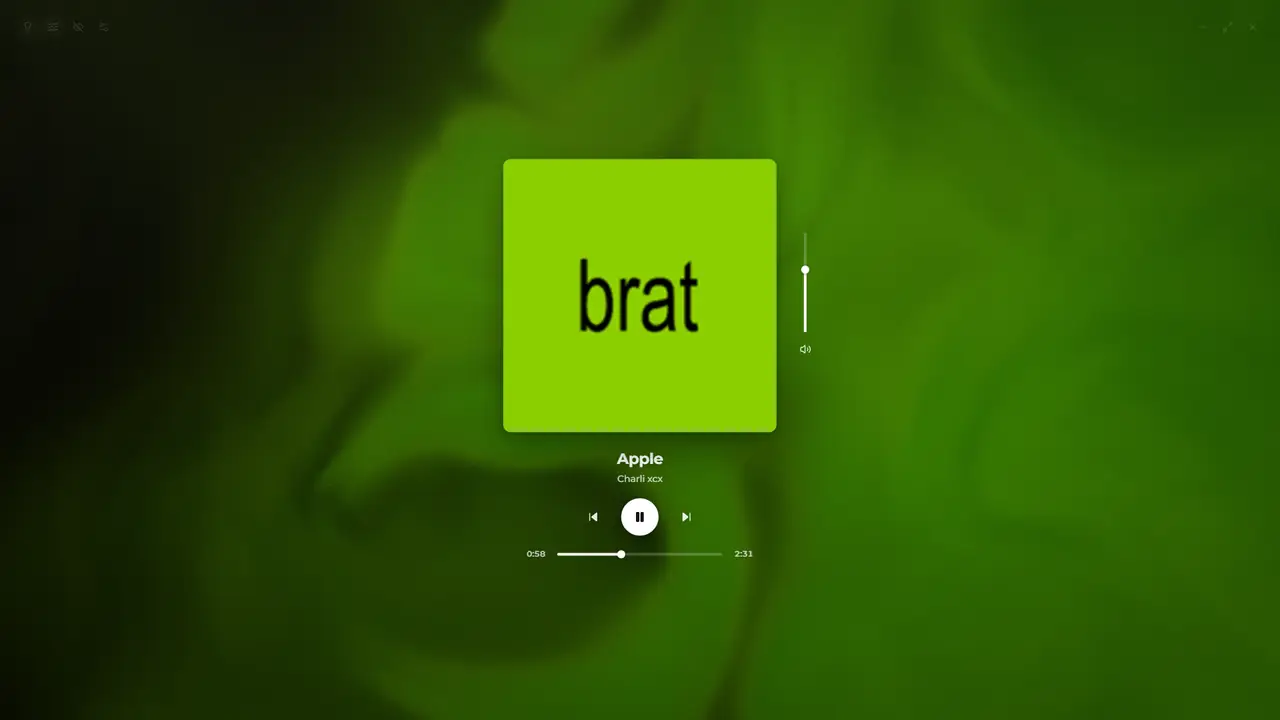
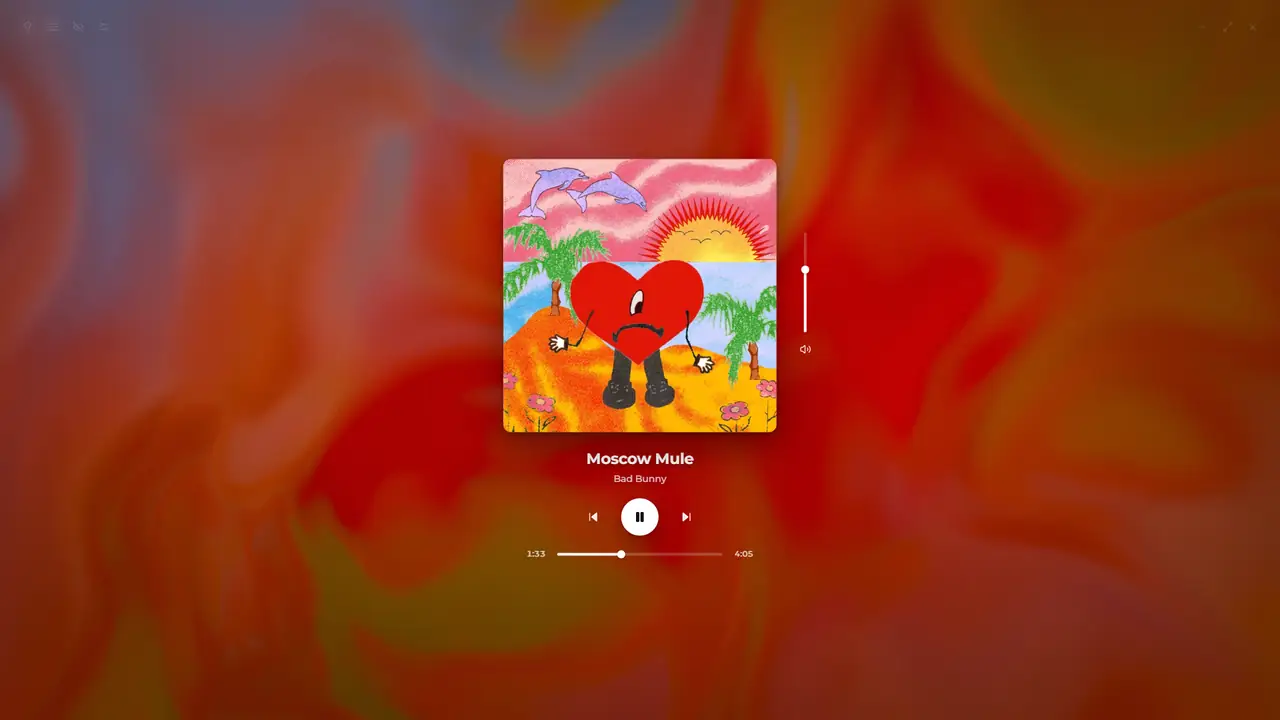
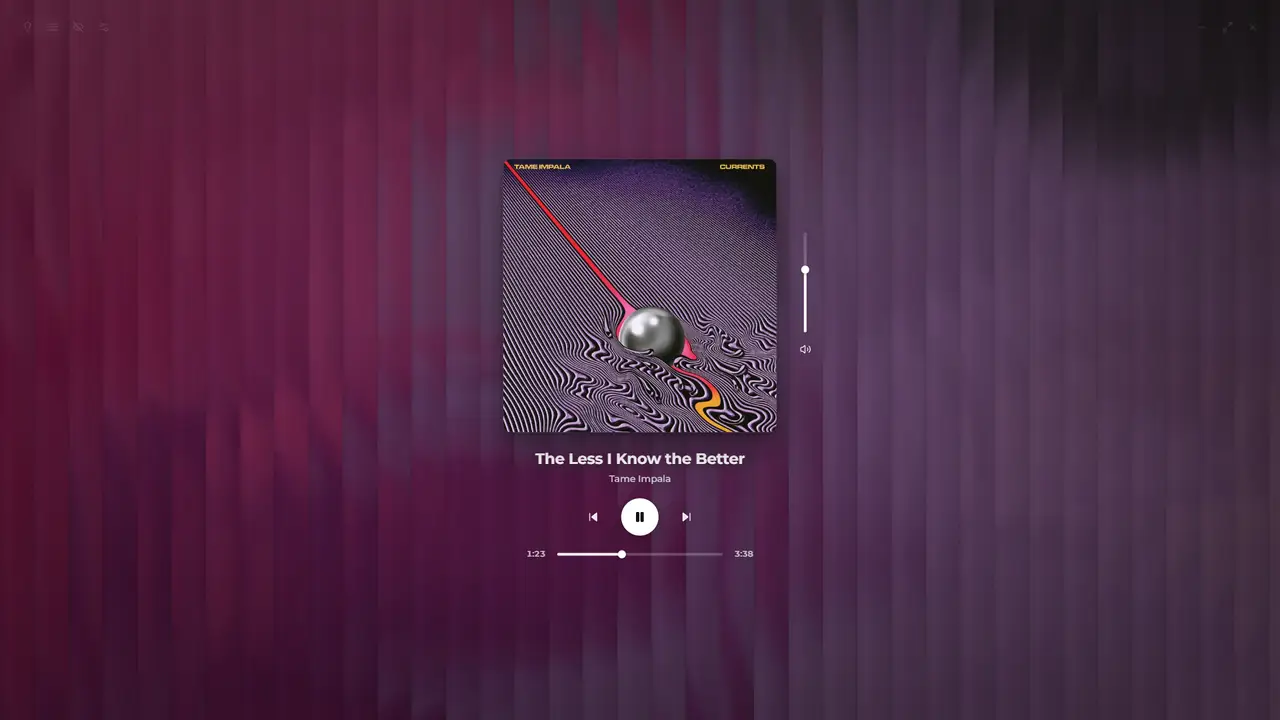
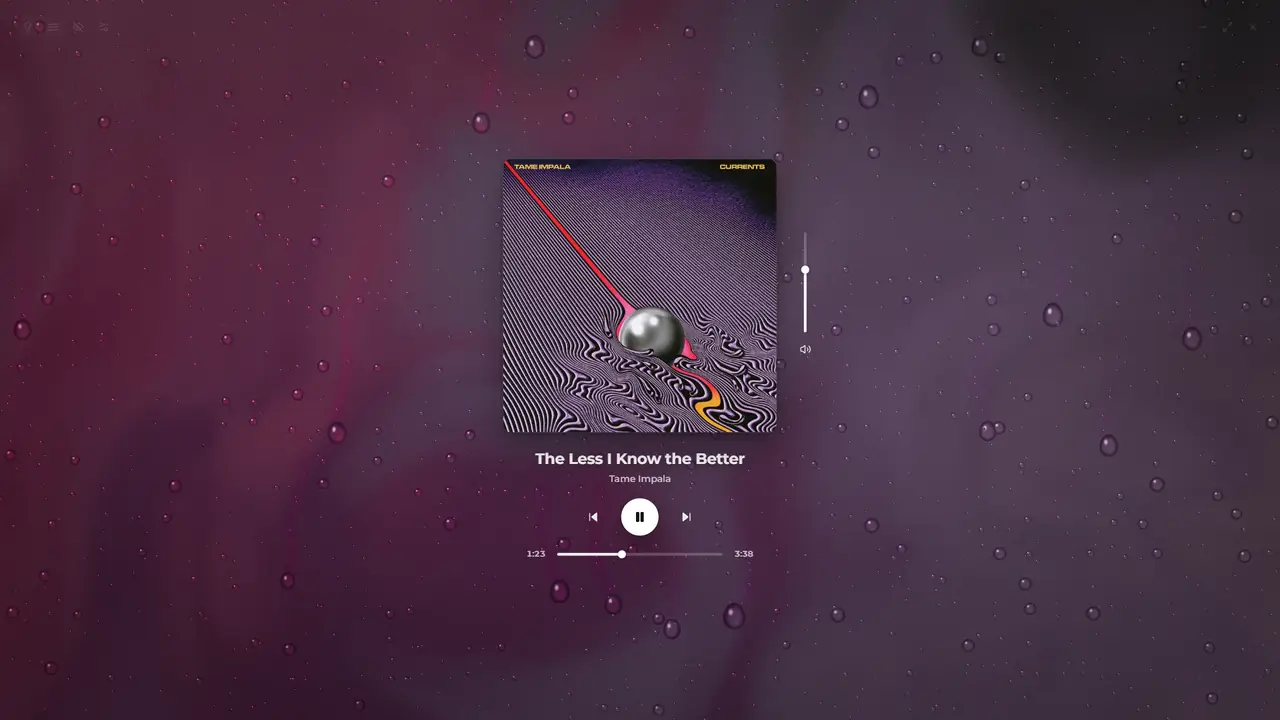
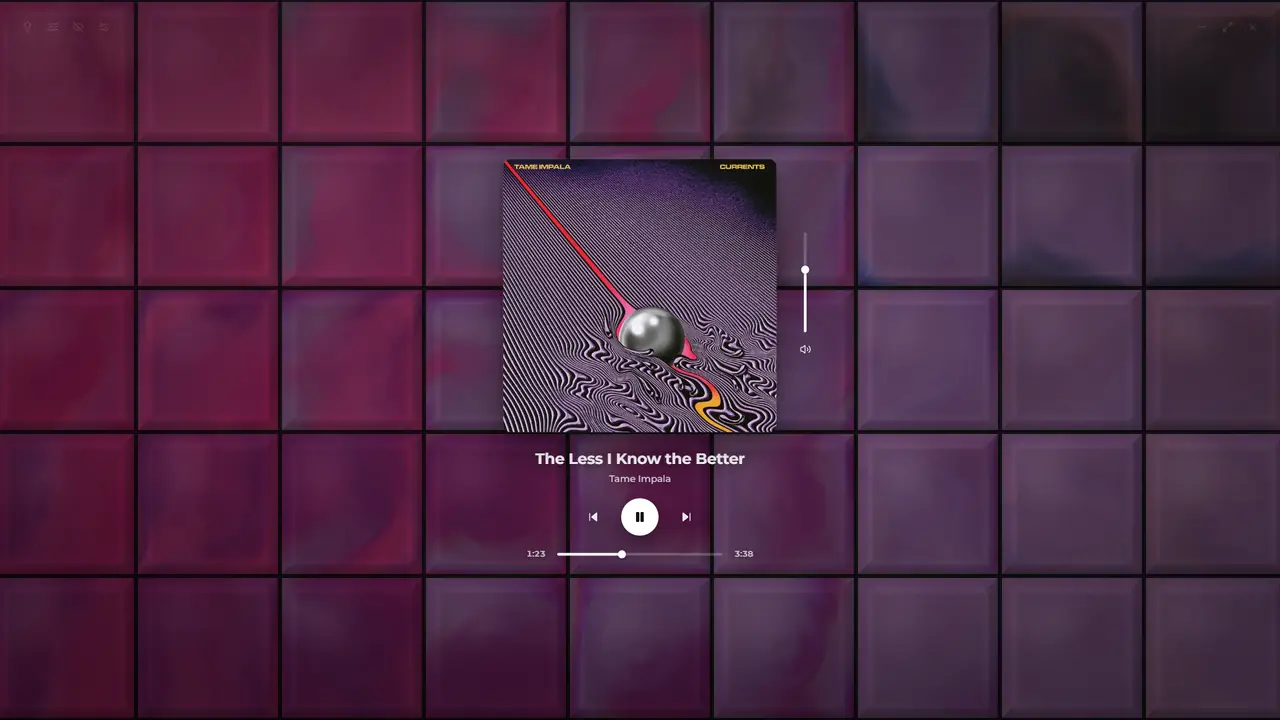
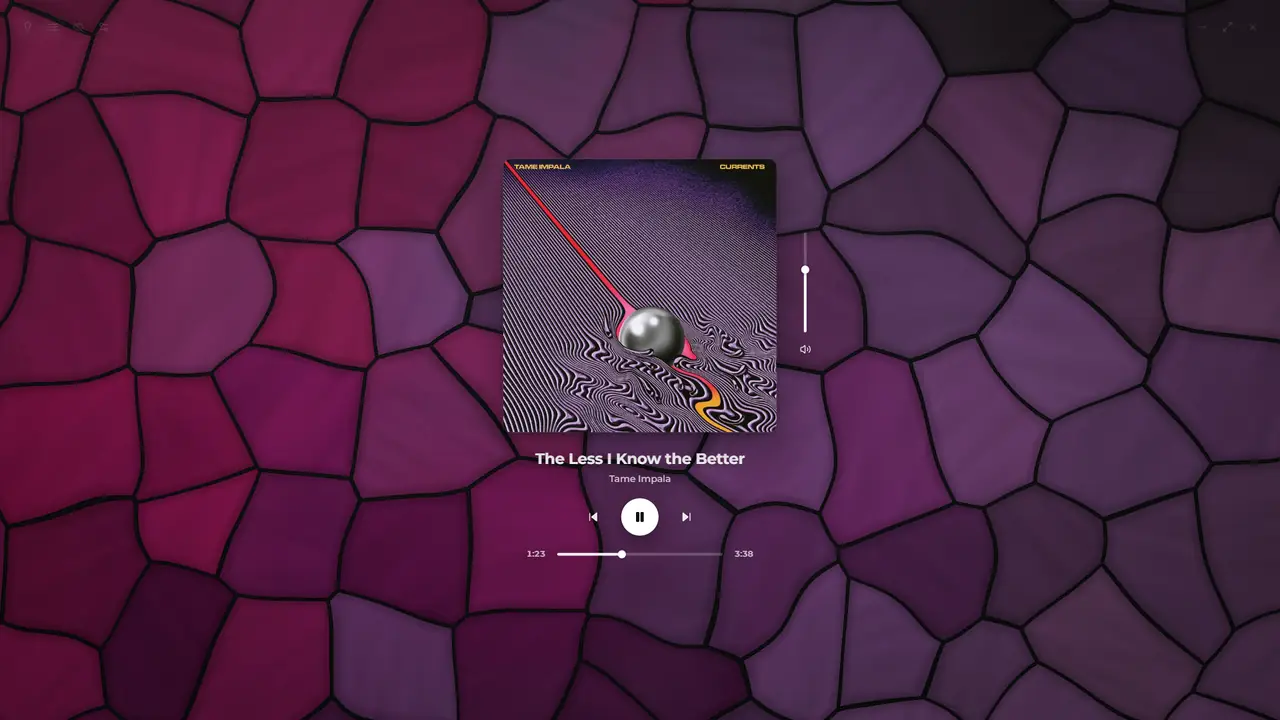
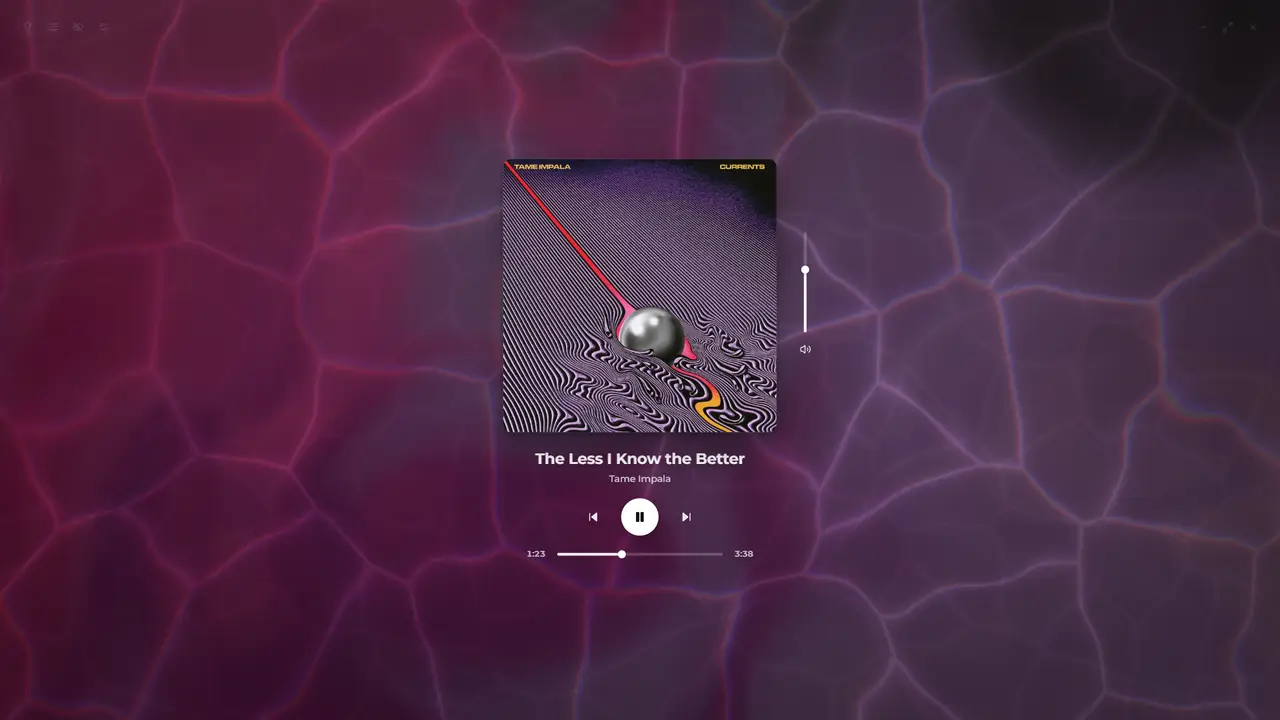
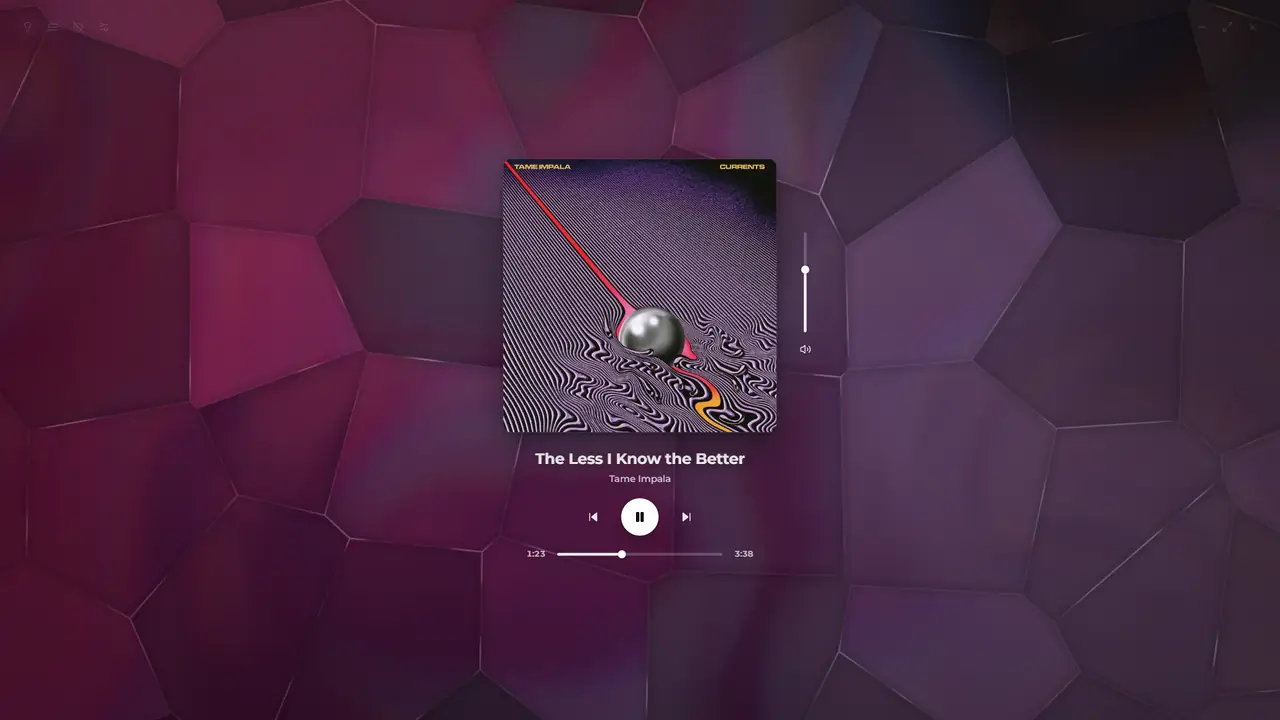
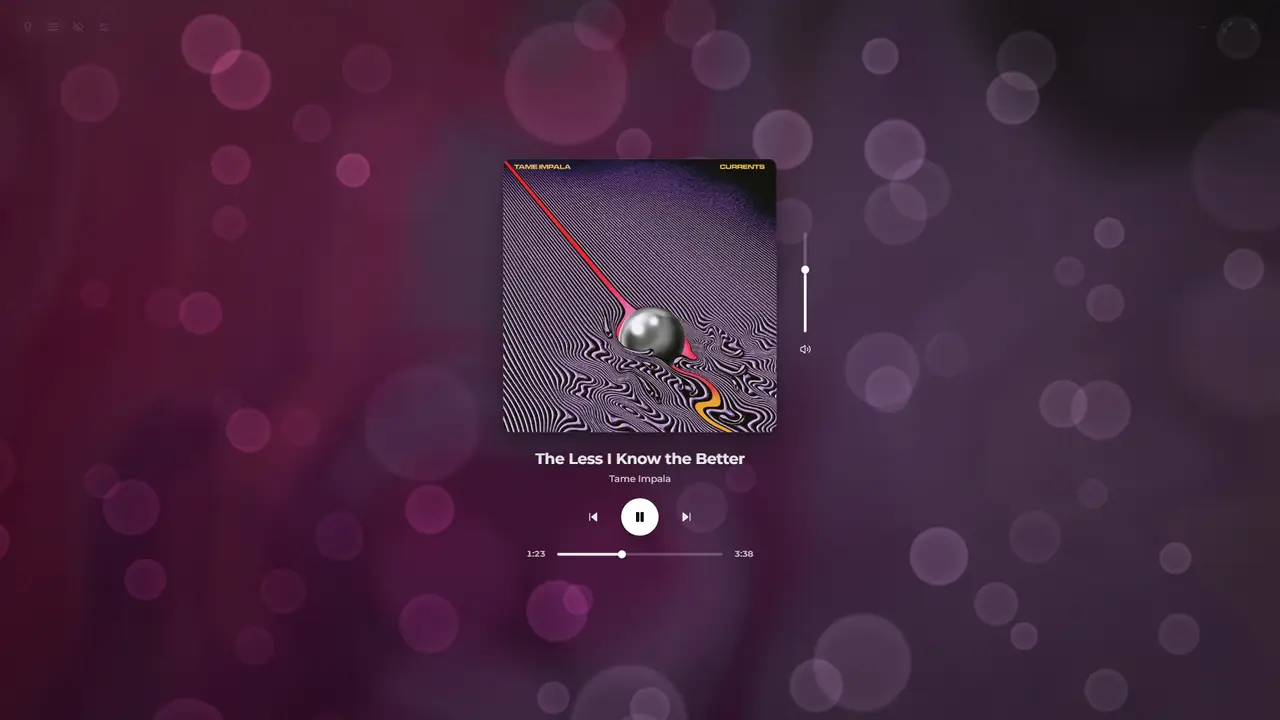
The player
Try it
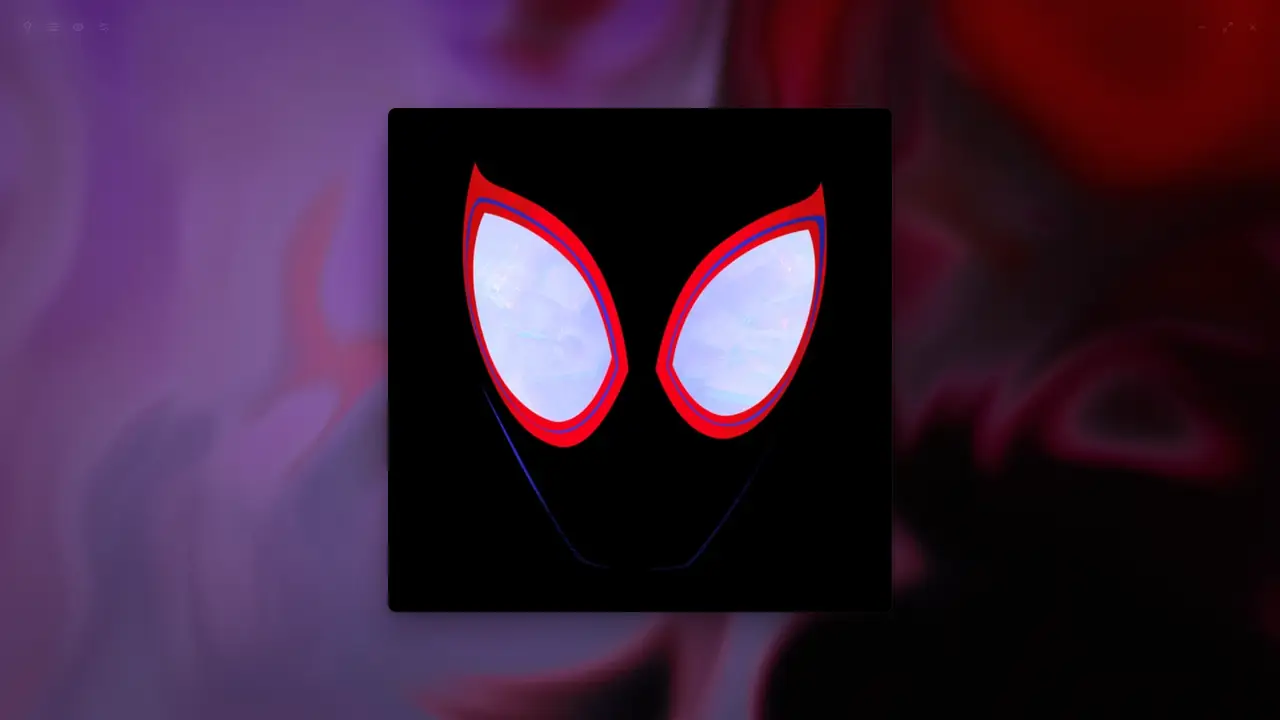
These are the colors Huephony's own color code picked for each cover, for a room with six bulbs on three stands.
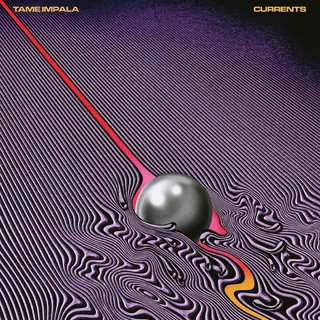
Purple sky, orange sun and the red-pink stripes, spread so stands next to each other don't match.
Each bulb holds a color picked from the cover, all song long.
Simulated in your browser. Real bulbs take commands about a third of a second apart, so think ambient light, not a strobe show.
Setup
No Python, no command line. Everything happens in the app's Settings.
The installer
Run the installer. There's nothing else to install. Windows will warn you because the installer isn't signed yet: click More info, then Run anyway.
Settings → Spotify
Create an app in the Spotify Developer Dashboard and add the redirect URI below. Make sure your account is listed under the app's Users Management, then paste its Client ID and Secret into Huephony.
http://127.0.0.1:8000/callback
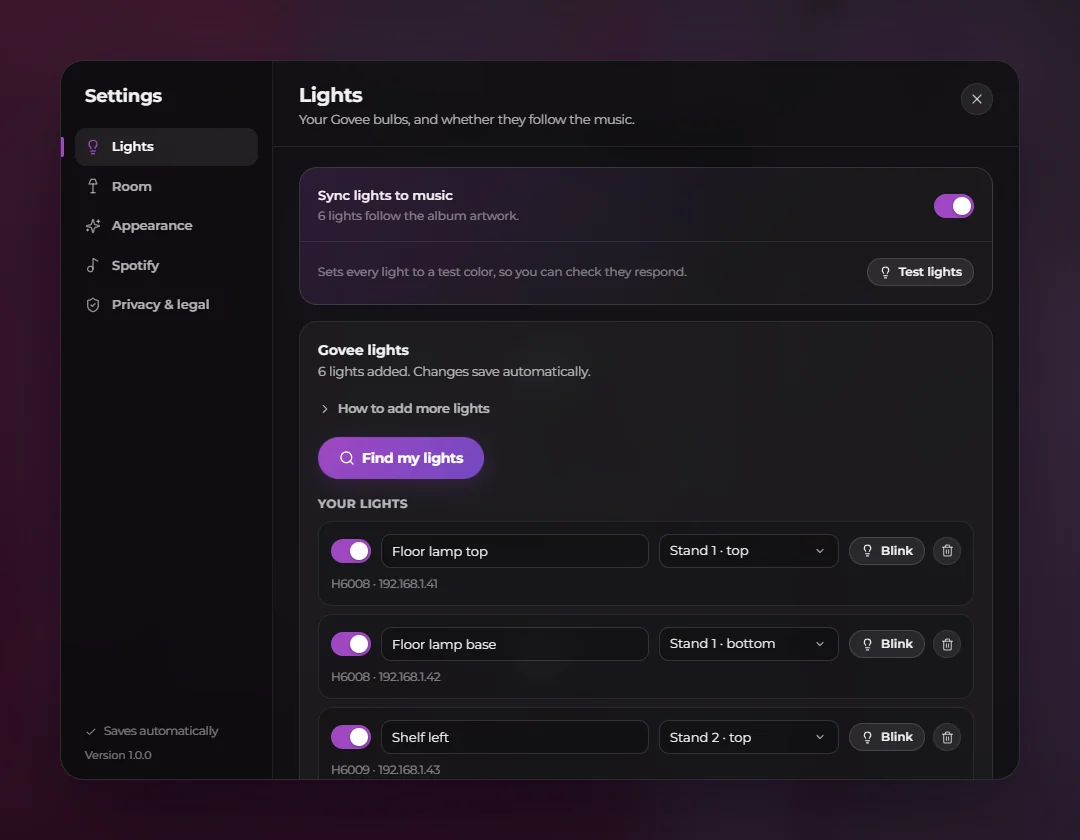
Settings → Lights
Switch on LAN Control for each light in Govee Home, then hit Find my lights. Blink each bulb to see which is which and give it a name. If one is missed, add it by IP address.
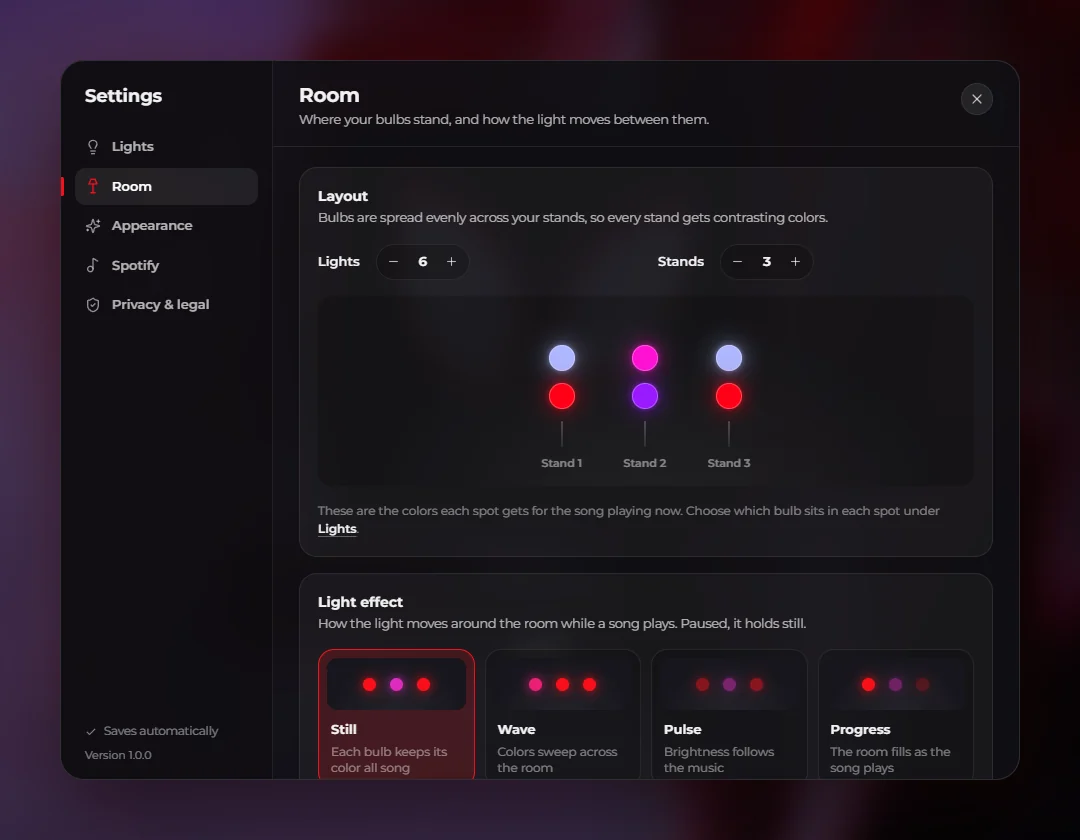
Settings → Room
Tell it how many lights and stands you have and where each bulb sits. Turn on Sync lights to music and press play.
No lights yet? The screen works on its own, and you can add bulbs later.
Privacy
It runs on your PC. No accounts, no ads, no analytics.
No accounts, no ads, no analytics. Huephony only talks to Spotify, for sign-in, artwork and what's playing.
Light commands go over your home network. You never need a Govee cloud key.
Pulse follows how loud your PC's audio output is. No microphone, and nothing is saved.
Secrets are encrypted with Windows DPAPI where available. Disconnect Spotify deletes your sign-in, playback state and logs.
FAQ
The installer isn't code-signed yet, so Windows SmartScreen doesn't recognize it. Click More info, then Run anyway.
To check your download is the real thing, compare its SHA-256 (in PowerShell: Get-FileHash .\Huephony_1.0.0_x64-setup.exe) with this one:
9899EACF628769946FD8A5E48F72F43B8FFD43A214FB11EBC4FCA694D2124005
Spotify only lets an app in development mode serve a short list of approved users, so one shared Huephony app couldn't serve everyone. Making your own takes a couple of minutes, and your sign-in stays between you and Spotify.
Spotify requires Premium on the account that owns a development-mode app. That's their rule, not mine. See Spotify's docs.
Wi-Fi lights that have a LAN Control toggle in the Govee Home app. Support varies by model. Each light is treated as a single color, so LED strips won't do per-segment effects.
If discovery misses a light, you can add it by IP address.
No. The full-screen display works on its own. Add lights whenever you like.
No. It listens to your PC's own audio output, on your PC, and only tracks loudness, not individual beats. It needs Spotify playing through this PC's speakers or headphones. The other effects work with Spotify playing anywhere.
Not right now. Huephony is Windows-only.
Nothing. No ads, no subscription, no account.
No. Huephony is an independent project and isn't affiliated with, or endorsed by, Spotify or Govee. Their own terms still apply to their services.
Huephony runs on Windows PCs. Open this page on your computer to install it.
Windows will probably show a SmartScreen warning because the installer isn't signed yet. Click More info, then Run anyway.
Next: the setup steps